
Overview
World Manager
Cache biomes, handle Runtime Generation, spawn HLODs, and clean up generated world data
BP_WorldManager collects and maintains the biome cache, manages Runtime Generation, and spawns HLOD content for more efficient streaming and performance. It also provides cleanup tools for removing temporary biome data after the cache has been built.
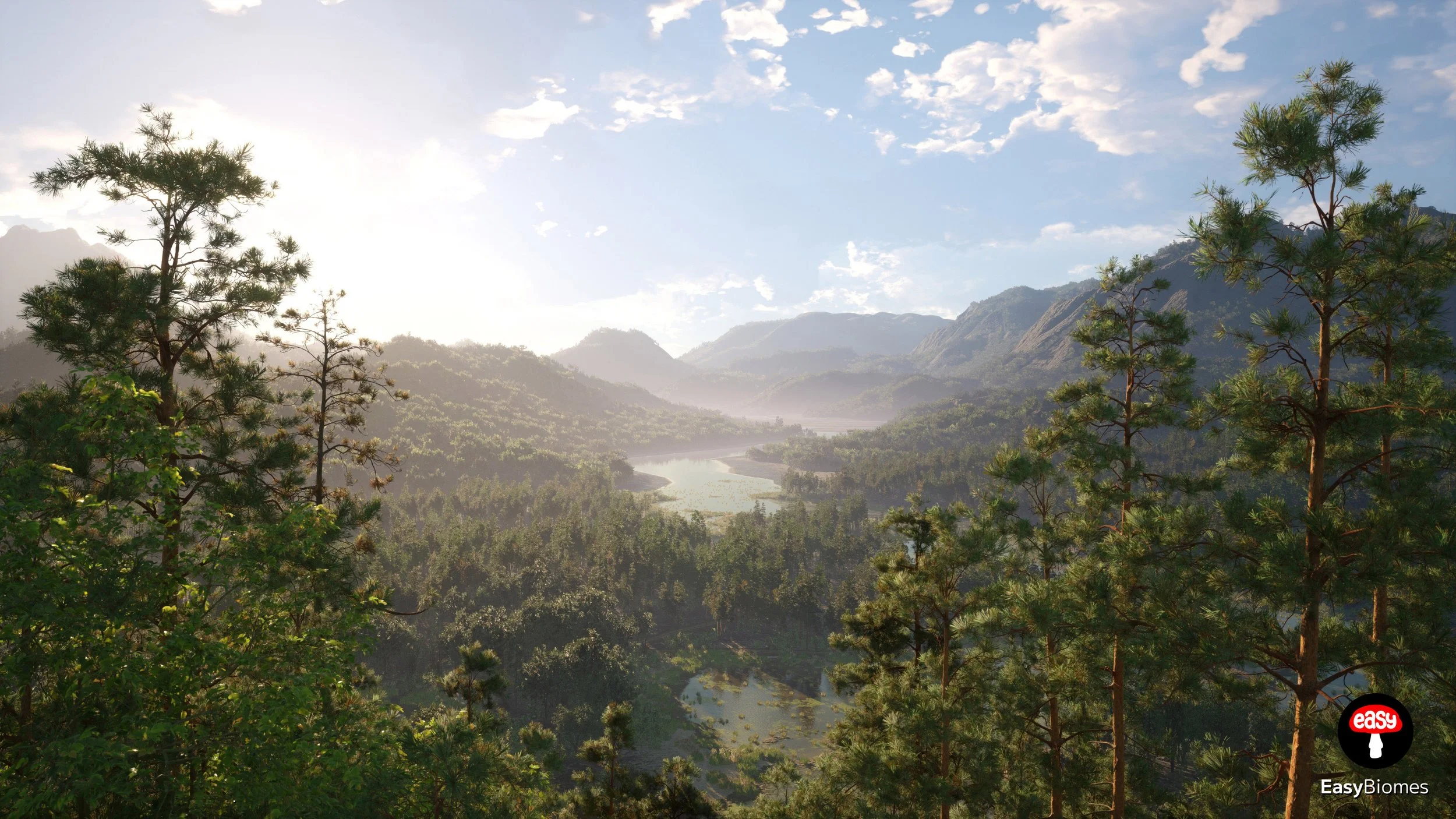
Runtime Generation in a Regular Level
Use Runtime Generation when you need to avoid loading all Nanite foliage up front. It spawns meshes around the player as needed and despawns them again at distance.
Enable Runtime Generation on a Biome or SubBiome
Enable Runtime Generation on at least one Biome or SubBiome. Runtime and non-runtime biomes can be mixed in the same level.
Press Spawn, then wait for PCG generation to finish. You can monitor progress in the bottom-right PCG Tasks indicator.
BP_WorldManager is spawned automatically. You should not expect an immediate visual change in the level.
Build the Runtime Cache
After PCG generation has finished, select BP_WorldManager and press Runtime Cache → Build.
Runtime Generation should start once the cache is ready. If it does not, press Runtime Generation → Resume. Use Pause whenever you need to stop it temporarily.
Use HLOD Simulation when needed
Avoid combining Runtime Generation with the Cinematic Biome Quality preset. The source documentation notes that this defeats the purpose of the runtime workflow because Nanite foliage can become a performance bottleneck.
To use the built-in fake HLOD system, select BP_WorldManager and press HLOD Simulation → Spawn.
Clean up empty PCG Partition Grid Actors
After the Runtime Cache has been built, press World Cleanup → Cleanup Cached Biomes. The biome actors are no longer needed because their generated data is stored in the cache.
Then use the Unreal Editor menu:
This cleanup is intended to reduce spikes caused by empty PCG Partition Grid Actors.
Runtime Generation in World Partition
World Partition requires a different, manual setup. The packaged-project limitation below is important.
BP_WorldManager does not work in packaged projects on World Partition levels. It may still spawn automatically, but the Runtime Generation workflow must be prepared manually before shipping.Enable Runtime Generation on the biome
Repeat Step 1 from the regular-level workflow above: enable Runtime Generation on at least one Biome or SubBiome, press Spawn, and wait for PCG generation to finish.
Duplicate the runtime PCG graphs
Navigate to:
Duplicate PCG_RuntimeCache, PCG_RuntimeSpawner, and PCG_HLODSpawner. Add the _WP suffix to each duplicate.
Modify PCG_RuntimeSpawner_WP
Open PCG_RuntimeSpawner_WP and add a Get PCG Component Data node.
Actor Selector Settings
Enable this option.
Set to By Tag.
Set to Cache.
Expected Pins
RTree
RActor
RMesh
RHLOD
Replace the Get Actor Data connections
Reconnect every output that previously came from Get Actor Data to the matching output of the new Get PCG Component Data node.
Copy this node, save the graph, and close it.
Modify PCG_HLODSpawner_WP
Open PCG_HLODSpawner_WP and paste the Get PCG Component Data node you copied.
Reconnect the RHLOD connection from Get Actor Data to the RHLOD output of Get PCG Component Data. Save and close the graph.
Place and configure the three World Partition actors
Place PCG_RuntimeCache_WP, PCG_HLODSpawner_WP, and PCG_RuntimeSpawner_WP in the level. Scale them so they fully cover the Landscape.
PCG_RuntimeCache_WP
Generate on Demand
Enabled
Disabled
Add the tag Cache.
PCG_RuntimeSpawner_WP
Generate at Runtime
Enabled
Disabled
PCG_HLODSpawner_WP
Generate on Demand
Enabled
Disabled
Generate the Runtime Cache and optional HLODs
Select PCG_RuntimeCache_WP and press Generate. Wait for generation to finish. Runtime Generation should then begin automatically.
If you need HLODs, select PCG_HLODSpawner_WP and press Generate. Build the HLODs, then clear PCG_HLODSpawner_WP.
Remove the runtime biome actors manually
Repeat the cleanup process from Step 4 of the regular-level workflow, but manually select the runtime biomes and press Remove.
Details Reference
BP_WorldManager exposes four groups of actions: cache management, Runtime Generation controls, HLOD simulation, and world cleanup.
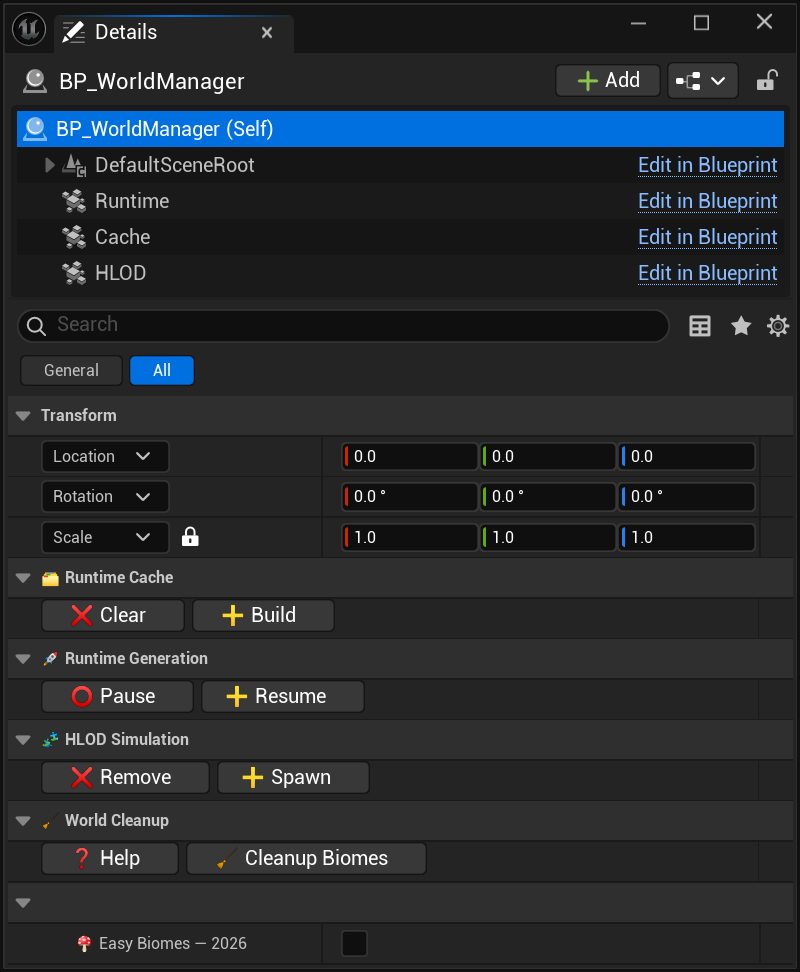
Runtime Cache

Runtime Generation
HLOD Simulation
World Cleanup